
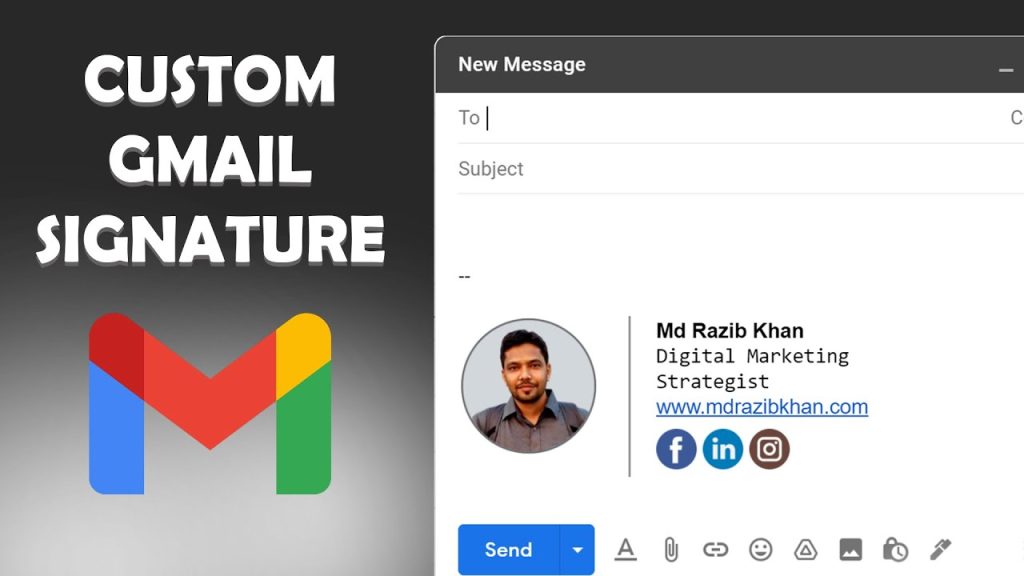
Quick answer: To create a Gmail signature with icons and an image, build it in a Google Docs table first: put your photo in one cell and your name, title and social icons in the others, then remove the table borders. Copy the table, open Gmail, click the gear icon → See all settings → General → Signature → Create new, paste it in, set your Signature defaults and click Save changes.
A clean signature with your photo and social icons makes every email look more professional and gives people an easy way to find you. This guide is for freelancers, marketers and small business owners who want a designed signature without paying for a signature tool.
Prefer to watch? The 7-minute video above shows every step on screen.
What do you need before creating your signature?
- A Gmail account opened in a desktop browser. The full signature editor is not available in the mobile apps.
- A small square photo or logo, plus small icon images for the social profiles you want to show.
- The links to your website and social profiles.
How to create a Gmail signature with icons (step by step)
Step 1: Create a table in Google Docs
Open a new Google Doc and go to Insert → Table. Choose 1 row and 3 columns. This table holds your photo, your details and your icons side by side.
Step 2: Add your photo and details
Insert your photo in the first cell with Insert → Image and resize it to a small size. In the next cell, type your name, job title, phone number and website.
- Keep the photo small so the signature does not dominate the email.
- Use one or two fonts and colours only.
Step 3: Add social icons and links
Insert your social icon images in the last cell (or under your details). Select each icon, press Ctrl + K (or Cmd + K on Mac) and paste the link to that profile so the icon is clickable.
Step 4: Remove the table borders
Right-click the table, open Table properties and set the border width to 0 pt. The layout stays, but the lines disappear.
Step 5: Copy the signature into Gmail
Select the whole table and copy it. In Gmail, click the gear icon → See all settings, stay on the General tab and scroll to Signature. Click Create new, give the signature a name and paste the table into the editor box.
Step 6: Set defaults and save
Under Signature defaults, choose this signature for new emails and, if you want, for replies and forwards. Scroll to the bottom and click Save changes.
Tips for a better Gmail signature
- Send a test email to yourself and to a different email provider to check how the signature looks.
- Use the same signature design for the whole team so your brand looks consistent.
- If you only need a plain text signature, type it straight into the Gmail signature editor and skip the Google Docs step.
Gmail signature not working? Common problems and fixes
Images or icons don’t show for recipients
Some email apps block images until the reader allows them. Also make sure your images are not stored as private files. Images pasted from Google Docs are usually hosted by Google, but if they break, insert them in the Gmail editor with the Insert image button using a public web address instead.
“Signature is too long” error
Gmail limits the size of a signature. Large images or heavy formatting can trigger this. Resize images before inserting them and remove extra blank lines or formatting.
The layout breaks after pasting
Copy the whole table, not just the content inside the cells. If the columns still collapse, make the table narrower in Google Docs and paste again.
The signature doesn’t appear in new emails
Check Signature defaults and confirm you clicked Save changes at the bottom of the settings page. If you use several Gmail addresses, set the default for each address.
What should you do next?
- Save time in your inbox with Gmail keyboard shortcuts.
- Learn more Gmail tips and tricks for daily work.
- Send emails at the right time with scheduled emails in Gmail.
Frequently asked questions
Yes. Insert small icon images, select each one and add a link to your profile. Each icon then opens that profile when clicked.
Gmail’s signature editor has no table tool, so placing a photo next to text is hard. A borderless table in Google Docs gives you a side by side layout that you can copy and paste into Gmail.
Yes. You can create several signatures and choose a different default for new emails and for replies. You can also switch signatures from the compose window.
The mobile apps only support a simple text signature. To add images and icons, create the signature in Gmail on a desktop browser.
Want more step-by-step tutorials? Subscribe to Digital Growth Tutor on YouTube for short, no-jargon guides.